Build Your Own BirdNET-Pi
View Schmoe's Backyard Birds Live Dashboard
BirdNET-Pi is an open-source project that transforms a Raspberry Pi into a real-time acoustic bird classification system. By utilizing a USB microphone or sound card, BirdNET-Pi can continuously monitor and identify bird songs and calls in your environment.
Key Features
- 24/7 recording and automatic identification of bird vocalizations using advanced machine learning models.
- Automatic extraction and cataloging of bird audio clips from longer recordings.
- Visualization tools to analyze recorded bird data and observe trends over time.
- Live audio streaming and spectrogram display.
- Integration with BirdWeather for sharing data and exploring global bird activity.
- Web-based interface for easy access to data, logs, and system settings.
- Support for various notification platforms through Apprise integration.
Getting Started
To set up BirdNET-Pi, you'll need specific hardware components. Before beginning the installation, make sure you have all the necessary parts.
View Complete Parts List
Hardware Requirements
The minimum hardware requirements for BirdNET-Pi include:
- A Raspberry Pi 4B, 400, 3B+, or 0W2 running a 64-bit version of Raspberry Pi OS.
- A USB microphone or compatible sound card (a microphone with a long cord is useful to run it out of a window for better outdoor sound capture).
- An active internet connection for software installation and data sharing (optional).
- MicroSD card (32GB recommended)
- Keyboard, mouse, and monitor (for initial setup only)
- Micro HDMI to HDMI adapter or cable to connect Raspberry Pi to monitor
- USB-C power supply (preferably with an on/off switch for easier power management)
Detailed Installation Instructions
2
Configure and Flash the OS:
- Choose Device: Select the Raspberry model: Raspberry Pi 4 Model B
- Choose OS: Select the OS: Raspberry Pi OS (64 bit) - A port of Debian Bookworm with Raspberry Pi Desktop (first option in the list)
- Choose Storage: Select the USB Device for your SD Card. It will say "Generic MassStorageClass USB Device - 36 GB" (or 35.x GB)
⚠️ Warning: Be extremely careful to select the correct drive. Selecting the wrong drive could wipe out important data. Consider disconnecting any external hard drives before proceeding.
- When it asks "Would you like to apply OS customisation settings?" click "Edit Settings" to configure:
- Hostname: birdnet
- Login credentials for the Raspberry Pi (username and password) - you can either set them here or you'll be prompted to create them during first boot
- WiFi credentials (SSID and password) - make sure "Wireless LAN country" is set to "US"
- Locale information
- Click "Yes" to begin the flashing process
- Wait for the process to complete (this will take about 10 minutes)
2.5
Familiarize Yourself with Raspberry Pi Ports:
Before connecting any cables to your Raspberry Pi 4 Model B, take a moment to identify the key ports:
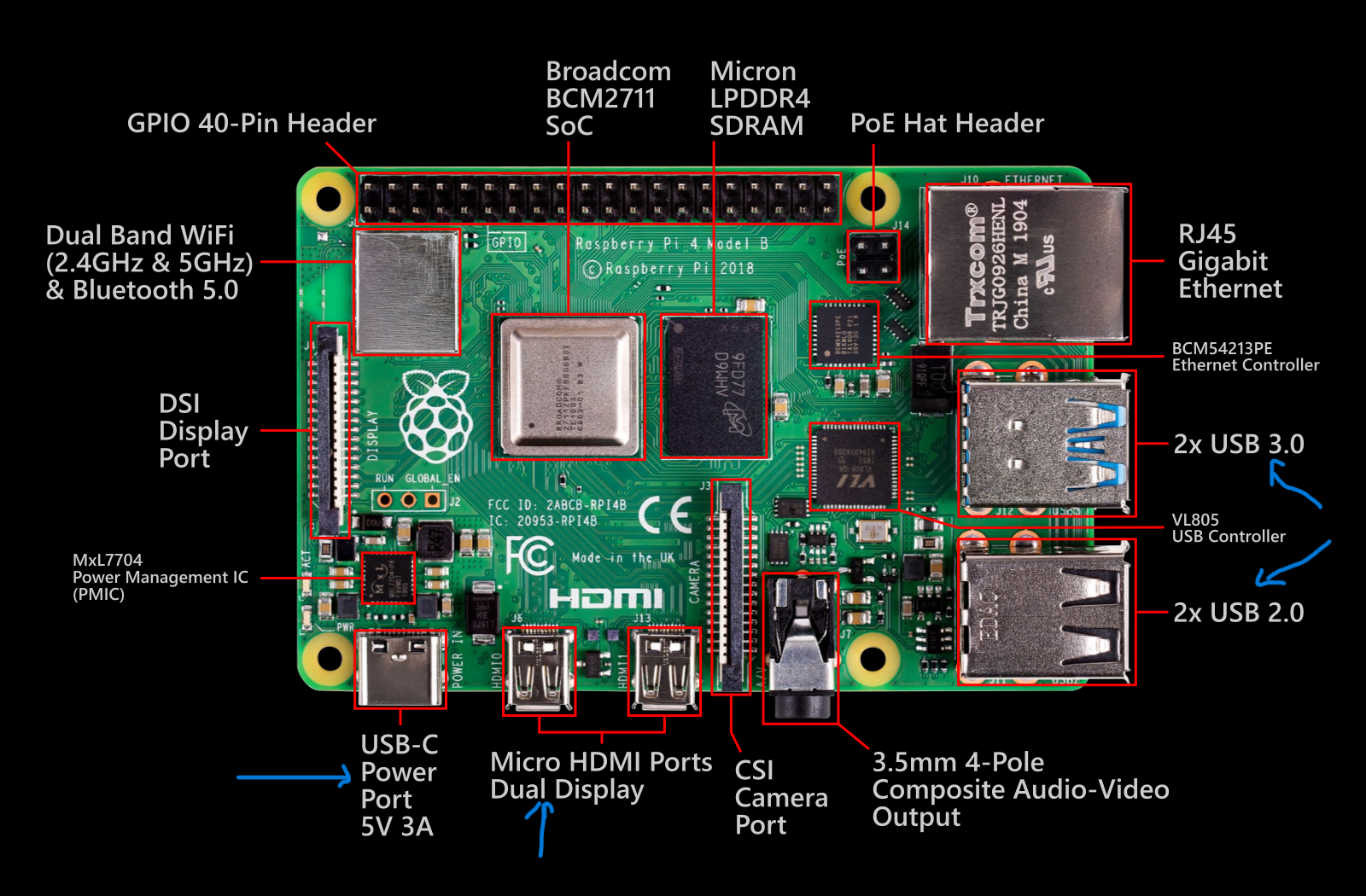
- Power Port (USB-C): Located on the bottom-left edge of the board, this is where you'll connect the USB-C power supply.
- Micro HDMI Ports: The Raspberry Pi 4 has two micro HDMI ports located next to the power port. Either one can be used to connect to your monitor.
- USB Ports: There are four USB ports on the right side of the board:
- Two USB 3.0 ports (blue)
- Two USB 2.0 ports (black)
You can connect your keyboard, mouse, and microphone to any of these ports.
- Ethernet Port: Located on the top-right of the board, this can be used for wired internet connection (alternative to WiFi).
- MicroSD Card Slot: Located on the underside of the board, this is where you'll insert your prepared microSD card containing the Raspberry Pi OS.
⚠️ Note: Always handle the Raspberry Pi by its edges to avoid damaging sensitive components. Connect or disconnect cables only when the Pi is powered off.
3
First Boot and Initial Setup:
- Insert the microSD card into the Raspberry Pi (it's on the bottom of the circuit board)
- Connect HDMI cable from Raspberry Pi to your monitor (Note: There are two HDMI ports on the Raspberry Pi 4)
- Ensure the monitor is set to the correct HDMI input source
- Connect mouse and keyboard to two of the USB ports
- Connect the USB-C power cord to power up the Raspberry Pi
- The red light indicates power is connected
- The green light will flash during boot-up and activity
- The Raspberry Pi will automatically download and apply updates (this may take 5-10 minutes)
- When updates are complete, you may be prompted to restart
- After reboot, the Raspberry Pi Desktop environment will load
4
Install BirdNET-Pi:
- Click the terminal icon (black box) in the top-left corner to open the command line
- Enter the following command exactly as shown:
curl -s https://raw.githubusercontent.com/Nachtzuster/BirdNET-Pi/main/newinstaller.sh | bash
- Press Enter and wait for the installation to complete (approximately 10-15 minutes)
- The installer will display a success message when finished
Note: This installs the maintained version of BirdNET-Pi. More information is available at https://github.com/Nachtzuster/BirdNET-Pi
5
Connect the Microphone and Test:
- Shut down the Raspberry Pi by unplugging the power
- Connect your USB microphone to an available USB port
- Reconnect the power to boot up the Raspberry Pi
- Wait for the system to fully boot
- The BirdNET-Pi application should start automatically
6
Access the Web Interface:
- From any device on your home network, open a web browser
- Navigate to http://birdnet.local
- Test the system by playing bird calls from the Merlin app or another source
- The page will update automatically as bird calls are detected
7
Final Deployment:
Once you've confirmed everything is working properly:
- Shut down the Raspberry Pi
- Disconnect the keyboard, mouse, and HDMI cables
- Move the Raspberry Pi to your desired location (e.g., near a window with the microphone positioned to capture outdoor sounds)
- Connect only the power and position the microphone appropriately
- Allow a few minutes for the system to boot up
- Access http://birdnet.local to monitor your bird detections
Configuring BirdNET-Pi Settings
After installation, you can configure various settings through the web interface to optimize detection and customize your BirdNET-Pi experience.
1
Accessing Settings:
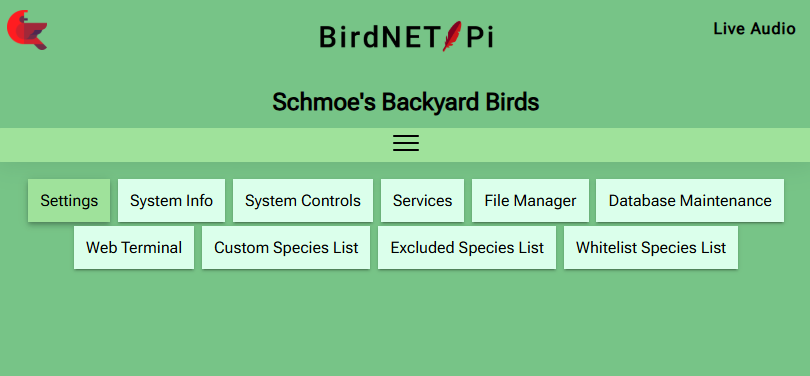
From the main BirdNET-Pi web interface, click on the "Settings" button in the top navigation bar as shown:
2
Basic Settings Configuration:
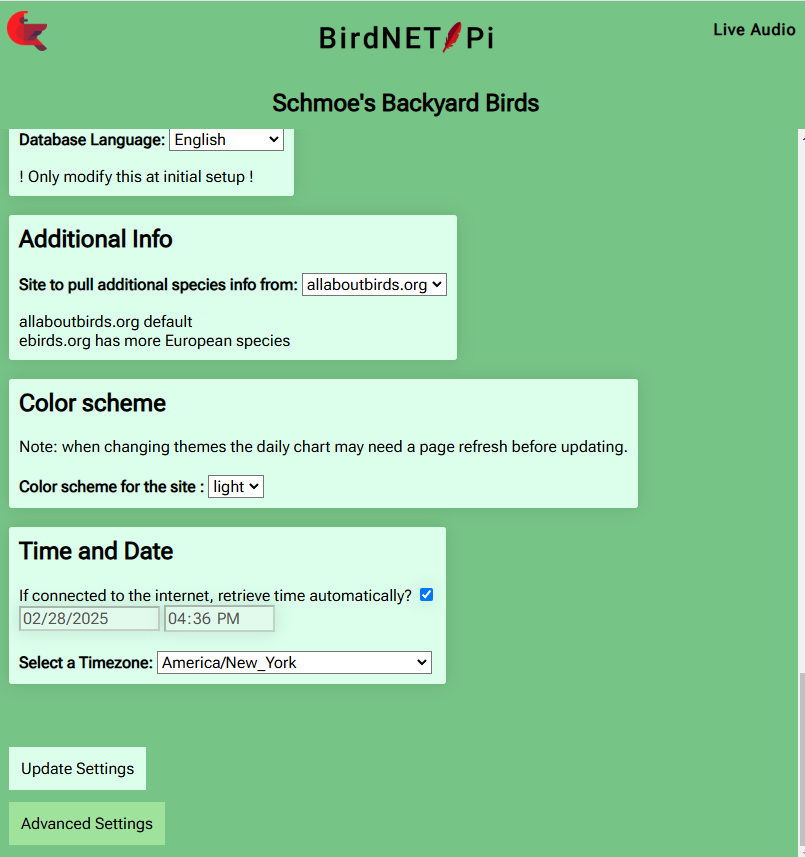
On the Settings page, there should be no need to change most of these settings. However, verify that the time information is correct for your location.
If you make any changes, click "Update Settings" at the bottom of the page.
To continue with Steps 3 & 4, click the "Advanced Settings" button at the bottom of the page.
3
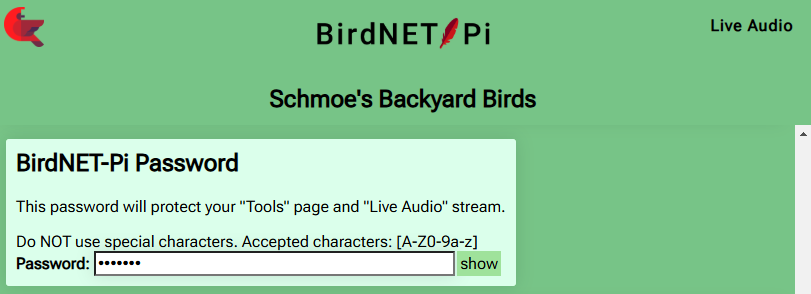
Securing Your BirdNET-Pi (via Settings → Advanced Settings):
You can add password protection for the "Tools" page and "Live Audio" stream:
- Default username is 'birdnet' and the default password is blank (empty field)
- Note: This password is separate from your Raspberry Pi system password and only protects access to certain BirdNET-Pi web interface features
4
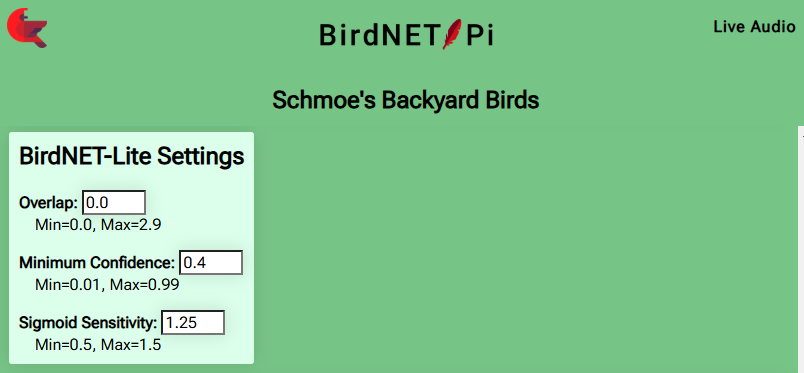
Optimizing Detection Settings (via Settings → Advanced Settings):
For better bird detection results:
- Minimum Confidence: Setting this to 0.4 (instead of the default) is recommended. This may result in some additional false positives but will capture significantly more bird identifications.
Hotspot Configuration (Optional)
For enhanced portability and field use, you can set up your BirdNET-Pi with automatic hotspot capabilities. This allows you to use your BirdNET-Pi in remote locations without existing WiFi networks.
Raspberry Pi Hotspot Configuration - Automated Setup:
This setup enables your Pi to create its own WiFi hotspot when away from your home network, allowing you to connect directly to it with your phone or tablet in the field.
How This Hotspot Setup Works:
- Simple operation: When your Raspberry Pi boots up, it:
- First tries to connect to your home WiFi
- If home WiFi isn't available (like when you're in the field), it automatically creates a hotspot
- You can then connect directly to your Pi using your phone, tablet, or laptop
- Perfect for field use: This setup is ideal for BirdNET Pi users who need to:
- Access their Pi while doing fieldwork away from home
- View BirdNET detection results in remote locations
- Configure settings without requiring external WiFi
For detailed setup instructions and the automated script, visit: BirdNET-Pi Hotspot Guide
Community and Support
BirdNET-Pi is developed and maintained by a community of enthusiasts and researchers. You can find more information, contribute to the project, or seek support through the following resources:
Example Setup
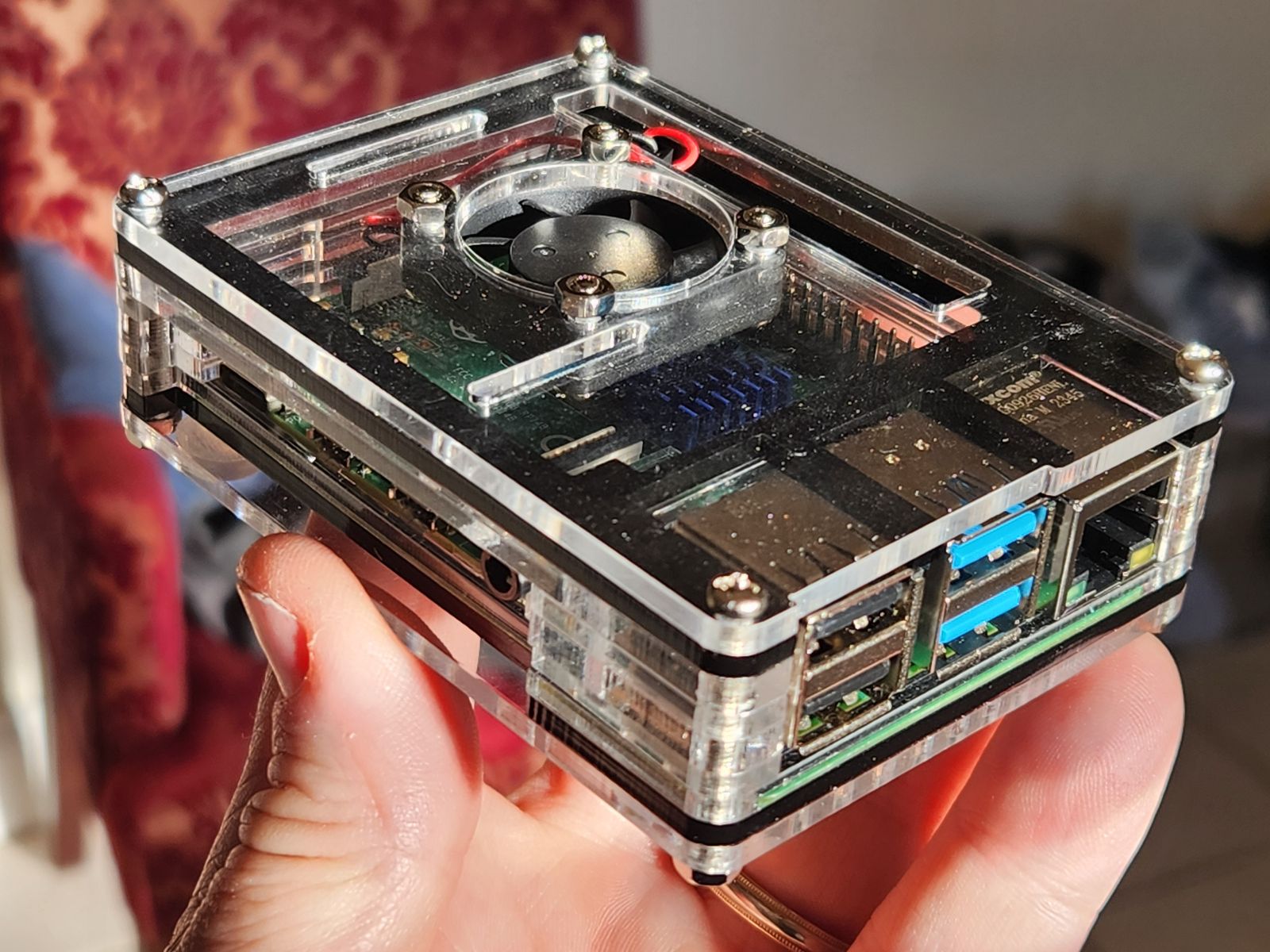
Here's an example of a completed BirdNET-Pi system setup: